Clip Boxes & Interior Inspection
From outside, a building scan is a shell of facades and roofs. Put a box around one storey, a plant room or a length of corridor and hide everything else. Move, resize and rotate it as the question changes. Nothing in the source data changes, so switching the clip off brings the whole project back.
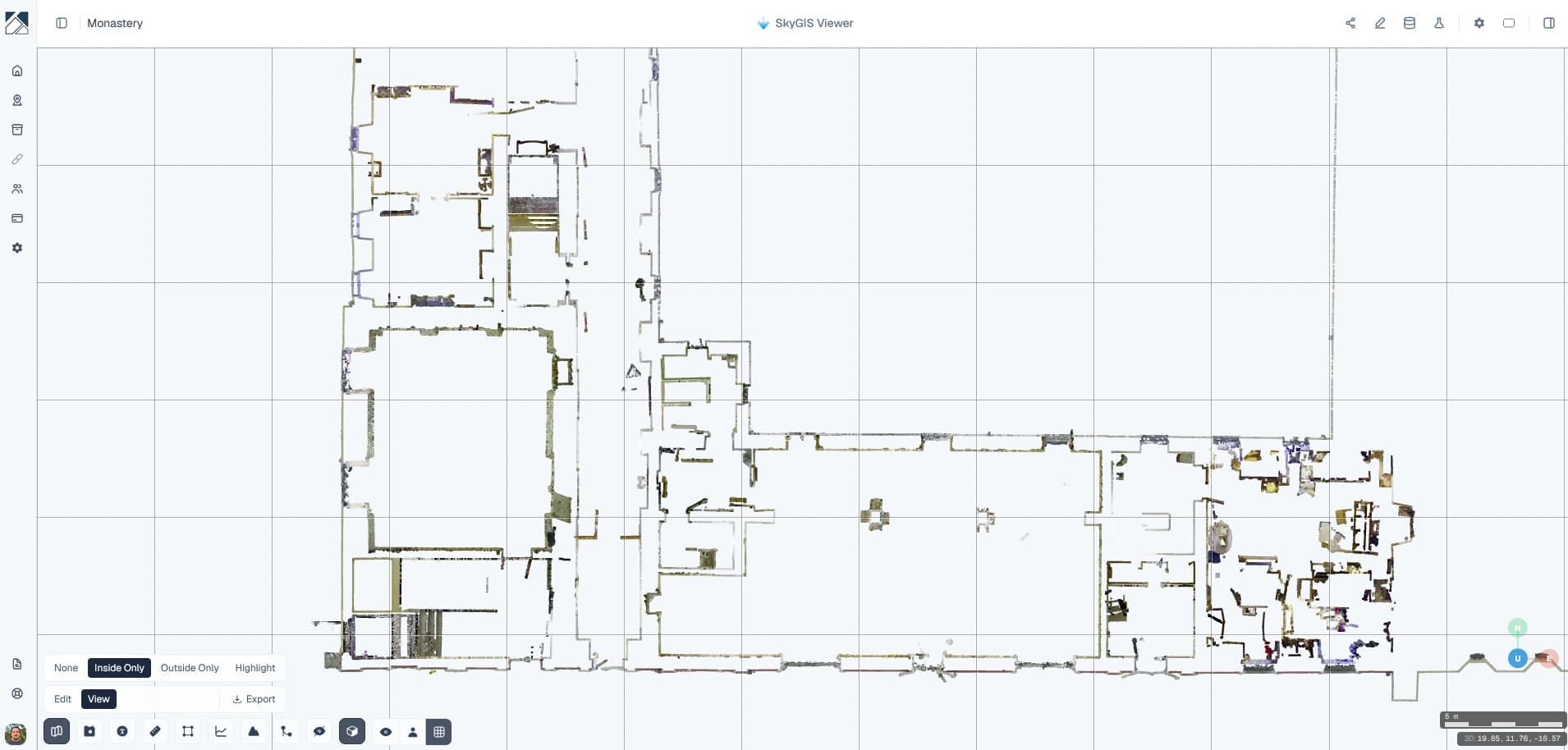
Clip box modes
Each box has a mode that decides what it does to the scene.
Inside Only
Shows only what is inside the box. The usual choice for an interior, a single storey or a short length of road or tunnel.
Outside Only
Hides what is inside the box. Cut away a roof or a wall to look in, or remove one cluttered area while keeping the rest.
Highlight
Keeps the whole scene visible and highlights the contents of the box. Good for showing someone which part of the site you mean without losing the surroundings.
Clipping point clouds, IFC models and LandXML together
The box cuts point clouds, IFC models, LandXML surfaces and meshes in the same scene, so a scan and its design are clipped at the same planes. That is the quickest way to see a modelled wall against the scanned one, or a slab against the design surface, at one location.
Drag the handles to resize, rotate the box to follow a building that isn't square to the grid, and measure whatever is left visible. In a mixed scene, look at each layer after changing mode: not every layer type supports every mode.
Clip box in Viewer and Pro
Visual clipping is part of every Viewer plan. Turning the clipped area into a file, or using it to limit processing, is Pro.
Viewer
- Inside Only, Outside Only and Highlight modes
- Move, resize and rotate the box
- Clips point clouds, IFC, LandXML and meshes
- Stored in saved views with the camera and layers
Pro adds
- Export the points inside the box as LAZ or E57
- Limit mesh generation to the area inside the box
- A clip box that moves with Alignment Walk, one station at a time
Setting up a clipped view
Place the box
Switch the clip box on from an overview of the site and drop it roughly around the area you want.
Check two angles
Look from above and from the side. A box that looks right in plan often cuts through the floor you meant to keep.
Save the view
Save the camera, visible layers, basemap and clip box as a view. Shared views give everyone on the project the same starting point.
Questions
What is a clip box used for in a review?
It isolates the part of the site the conversation is about, such as one storey, a plant room or a length of corridor, so a design review or a client call looks at that area and nothing else.
Does a clip box change or delete my data?
No. It only changes what you see. Switch it off and the whole project is back as before.
Can I send colleagues straight to a clipped view?
Yes. A saved view stores the clip box with the camera position, visible layers and basemap, and can be private or shared with project members.
Can I send someone just the clipped area as a file?
Yes, with SkyGIS Pro. The points inside the box export as LAZ or E57, so a client or contractor gets the room or section they need rather than the whole scan.
Try it with your own data
The free plan includes one user and 5 GB of storage, with no credit card required. Upload a file and open it in your browser.