Earthwork Quantities by Chainage
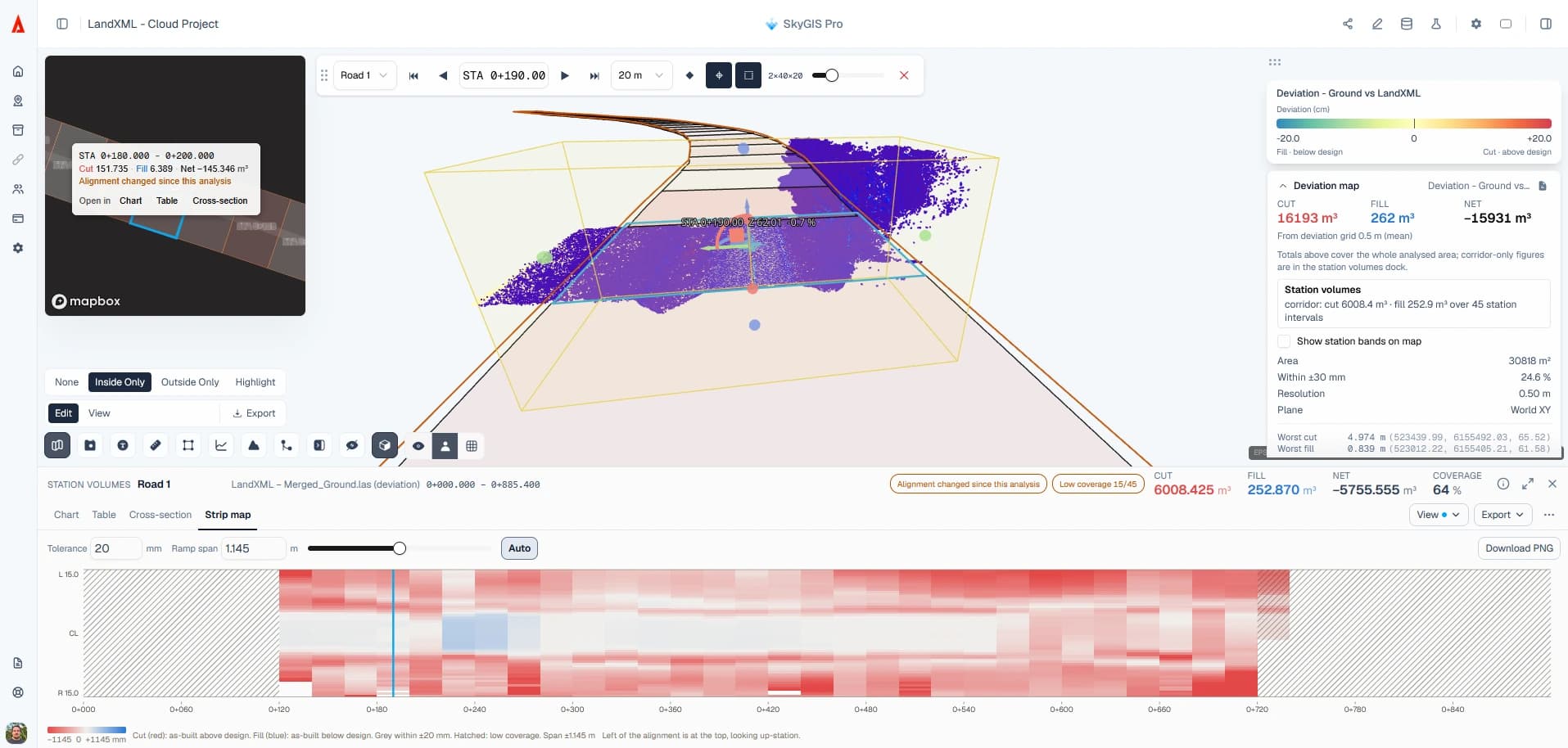
A single cut and fill total doesn't tell a site team where the material is. Add an alignment to a surface comparison and SkyGIS Pro splits the result into station intervals: cut, fill and net for each one, a cumulative net curve along the route, and the coverage behind every figure. Click a station and the 3D view goes there.
- Built on
- Surface difference or deviation runs
- Per interval
- Cut, fill, net, cumulative, coverage
- Export
- CSV of every station
Example data
885 metres of road in 45 intervals
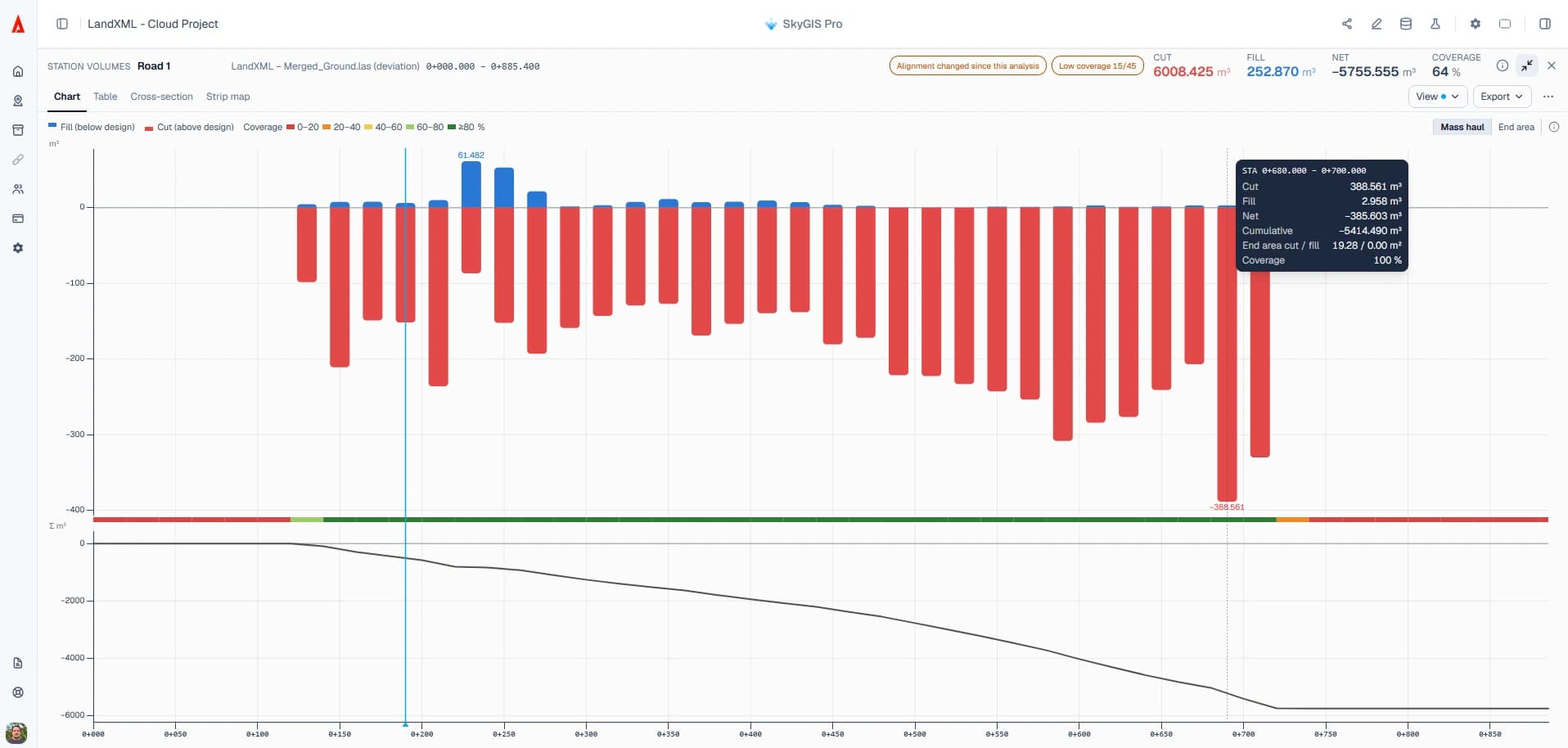
The screenshots on this page show a road corridor 885 m long, surveyed and compared with its LandXML design, then split into 45 intervals of 20 m. Across the corridor the result is 6,008.4 m³ of cut and 252.9 m³ of fill: a net 5,755.6 m³ in cut, with 94% of the corridor covered by survey.
The total says the road is in cut. The station chart says where. Almost every interval from 0+120 to 0+720 is in cut, peaking at 388.6 m³ near 0+700, and the only fill of note is 61.5 m³ between 0+220 and 0+240. The panel flags low coverage in 15 of the 45 intervals, at the two ends where the survey doesn't reach the design.
- Corridor
- 885 m in 45 × 20 m intervals
- Cut / fill
- 6,008.4 / 252.9 m³
- Coverage
- 94%
Station analysis settings
Station quantities are switched on inside a surface difference or deviation run, against the project alignment.
- Alignment
- From the LandXML design, a CAD or GIS file, or digitised over the point cloud. Set its label and start chainage.
- Chainage range
- The whole alignment or the stretch you're reviewing.
- Interval
- The length of each station bin, for example 20 m.
- Corridor width
- Left and right offsets from the alignment.
- Coverage
- Intervals with too little measured data are flagged and hatched as low coverage.
- Grid
- Volumes are integrated on the comparison grid (0.5 m in the example) and reported per interval.
What the mass-haul curve shows
The lower chart is the cumulative net volume from the start of the range, each interval's net added to the total before it. Where the curve falls, cut is outrunning fill. Where it rises, the route is taking more fill than it produces. A flat stretch is roughly in balance.
It is a running balance, not a haul plan. It knows nothing about haul routes, plant, material suitability or cost. Use it to see where the balance turns, then take the station figures into your own haul planning.
Reviewing a stretch of the corridor
Select a range
Drag across the chart to select a run of stations, or keep the whole corridor.
Go to a station
Click a bar or a table row. The 3D view moves to that station and clips to the interval.
Sort the table
Sort by cut, fill, net, cumulative or coverage to find the biggest intervals and the thinly covered ones.
Export
Download every station as CSV for your quantity sheet or report.
Questions
Why break earthwork volumes down by chainage?
A single total doesn't tell the site team where the material is. Cut, fill and net for each station show which stretches are in cut, which need fill and where the peaks are.
Can I export station volumes to Excel?
Yes. The full station table exports as CSV, which opens in Excel or any other spreadsheet.
What does the mass-haul chart show?
How the cut and fill balance builds up along the route, interval by interval. It doesn't plan haul routes, fleets, material suitability or costs.
How do I know a station's figure is reliable?
Every interval reports its coverage, and stations where the survey doesn't reach the design are flagged as low coverage. Check those before you quote a figure.
See it on one of your own datasets
Pro is priced around your team and data volumes. The quickest way to judge it is a 30-minute walkthrough on a dataset you already have.