Alignment Walk & Cross-Sections
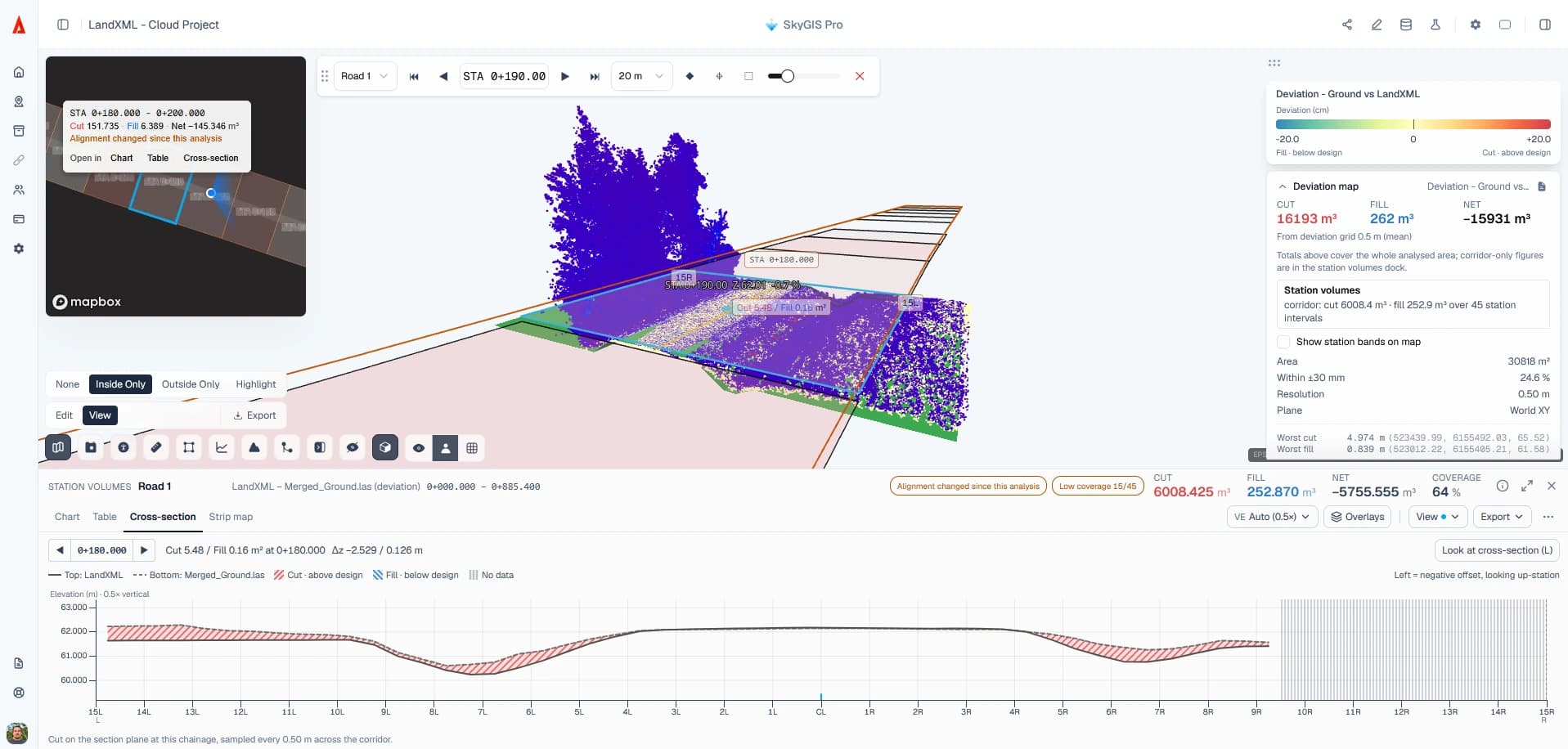
Type a chainage and go there. Alignment Walk moves along a road or rail alignment by a fixed step or from key point to key point, and puts a clip box on the current station so you see the scan and the design at that section and nothing else. Add a station analysis and each stop also shows the design and measured cross-section on one chart, with cut and fill shaded.
- Move by
- Chainage, step distance or key point
- At each station
- Clip box, camera follow, point elevations
- With a station analysis
- Sections, strip map, DXF, PDF
Setting up the alignment
Alignment Walk follows the active alignment in the project. It can come from the LandXML design, from a CAD or GIS file, or be digitised over the point cloud when nobody supplied one. Use the alignment from the design deliverables where you can, since that is what everyone else measures chainage from.
Set the active alignment by its label and start chainage. Viewing alignments is part of SkyGIS Viewer; walking them, and everything else on this page, is Pro.
Moving along the alignment
Alignment Walk adds a toolbar for getting to the section you want and keeping it readable.
Go to chainage
Type a station into the toolbar to jump straight to it.
Step distance
Move forward or back by a fixed step, such as 20 m.
Key points
Jump between key points on the alignment instead of a fixed step.
Camera follow
Keep the camera oriented along the route, so every section is seen from the same direction.
Station clip box
Clip the point cloud and the LandXML model to the current station.
Point elevations
Query the elevation of points at the station.
What a station analysis adds
Alignment Walk on its own is navigation. Run a surface difference or deviation analysis with station quantities and each station also gets:
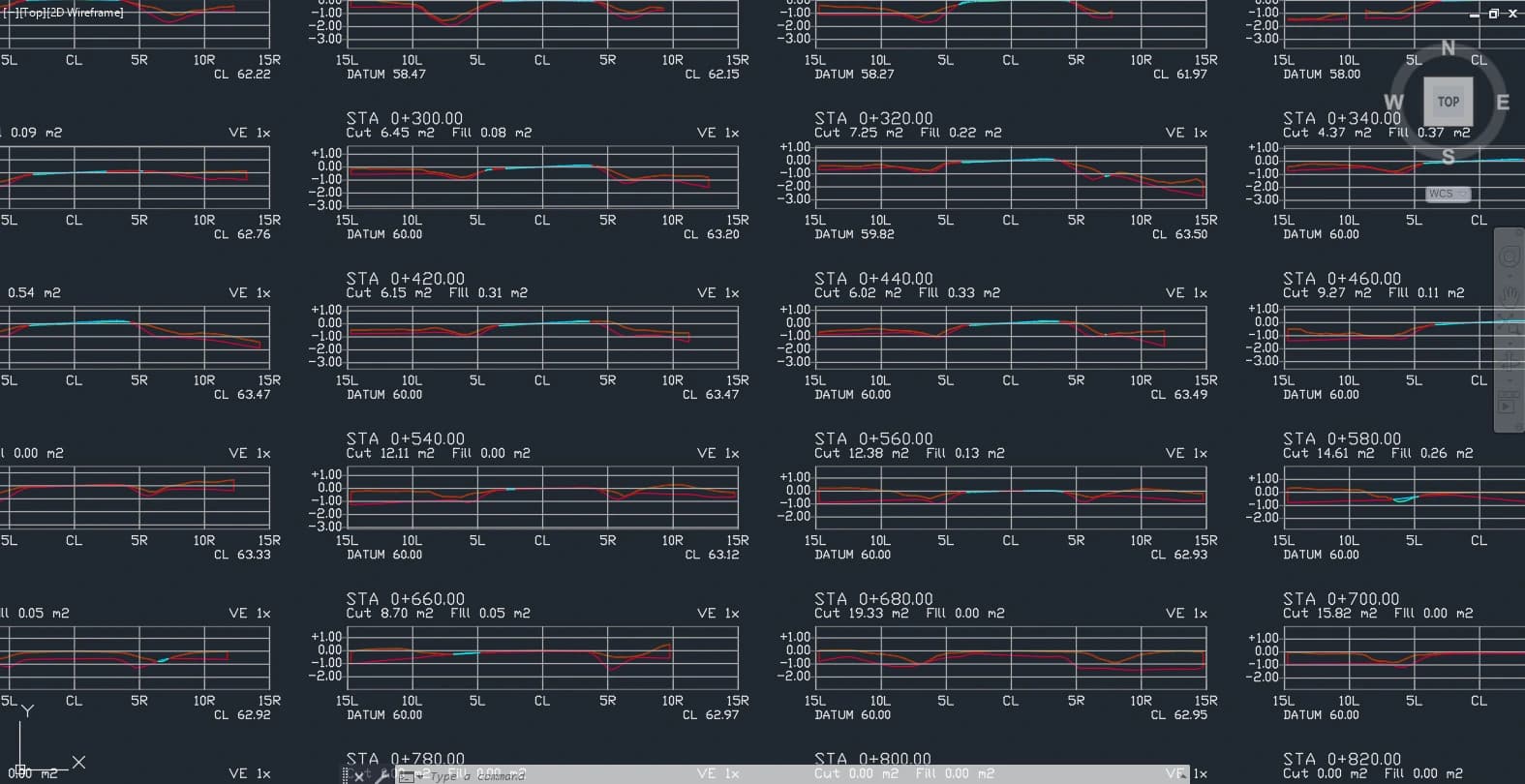
- Design and measured cross-sections on one chart, with cut and fill shaded
- A strip map of cut and fill along the whole corridor
- A station chart and table that move the 3D view when you select a station
- Lane-band crossfall checks against a tolerance
- Cross-section profiles exported to DXF
- PDF reports with the key metrics
Questions
How does Alignment Walk speed up a corridor review?
Type a chainage and you're there, with the scan and the design clipped to that section. Reviews and site discussions can go station by station, with no hunting through the whole corridor.
Can I give cross-sections to the CAD team?
Yes. Run a station analysis and the design and measured sections export to DXF, with a PDF report for people outside the CAD team.
Can I use an alignment from a CAD or GIS file?
Yes. Import it from a CAD or GIS file, or digitise one over the point cloud if none was supplied. Where possible, use the alignment from the design deliverables so station numbers match everyone else's.
Is Alignment Walk in SkyGIS Viewer?
No. Viewer displays alignments and their properties. Alignment Walk and the station tools are part of SkyGIS Pro.
Walk your own alignment
Bring a LandXML design, its alignment and a recent survey to a 30-minute walkthrough, and step through a few stations on your own data.