Engineering PDF Reports
Not everyone who needs the result will open the project. SkyGIS Pro turns a saved deviation, surface difference, station volume or layer stack result into a PDF. You give it a title, pick the language and the sections, add a page per station if the corridor needs one, and download the file when it has rendered.
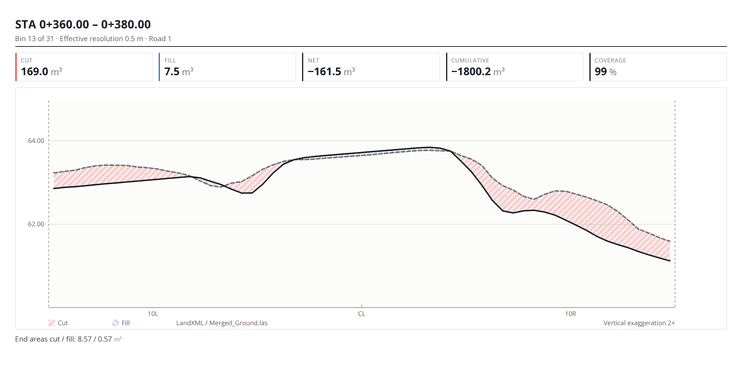
What a PDF report can include
Sections come from the saved analysis, so what you can include depends on what you ran.
Deviation
Results of a deviation analysis against an IFC model, a plane, a terrain surface or another scan.
Surface difference
Cut and fill between two LandXML surfaces, a LandXML surface and a point cloud, or two point clouds.
Station volumes
Quantities station by station along an alignment, from a station analysis.
Clearance analysis
Station results and cross-sections from a clearance sweep.
Elevation profile
A profile chart, grades, sampling settings and a plan view of the route.
Layer stack
Level and thickness results from a multi-layer verification of a pavement or earthwork build-up.
Station pages
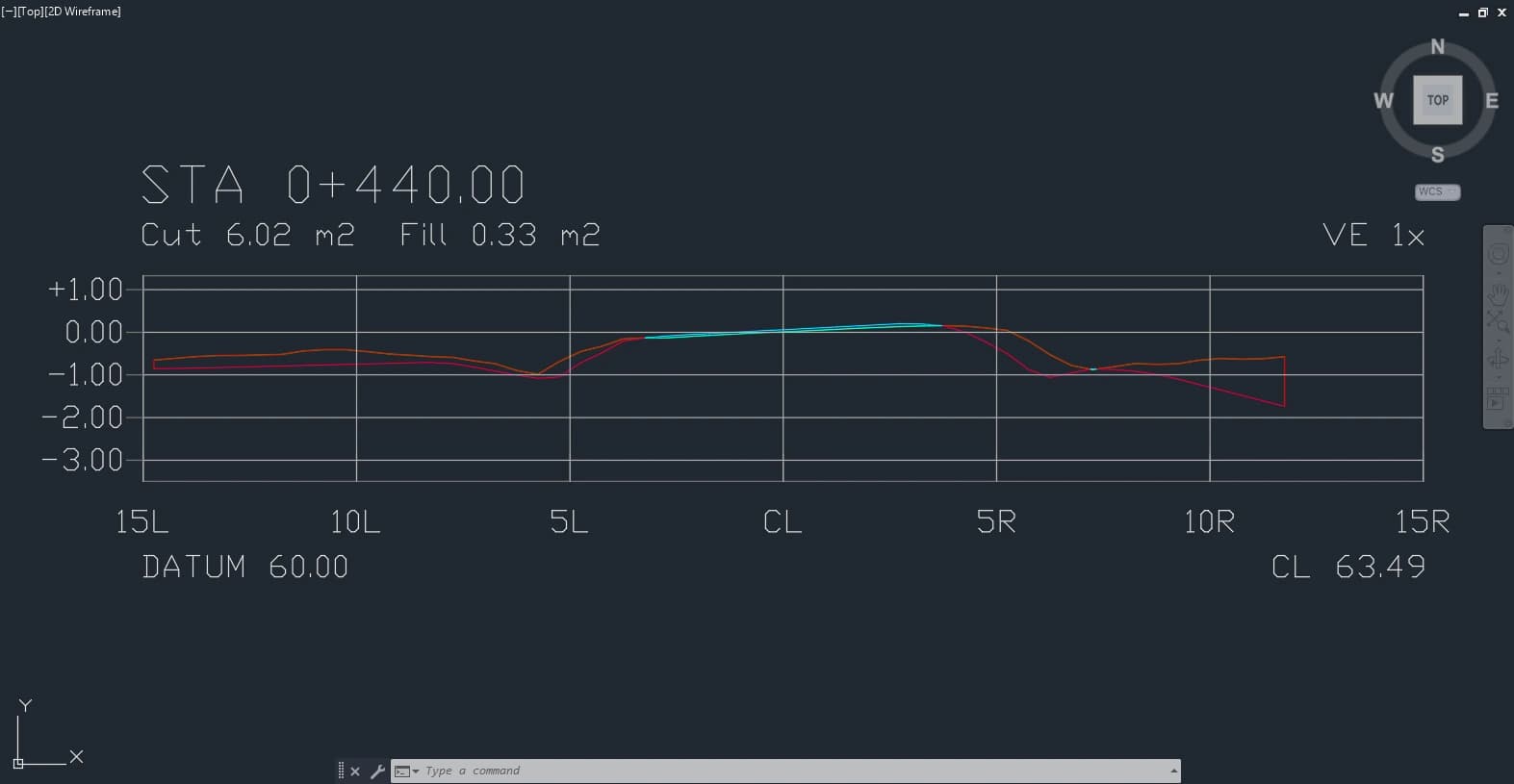
A dedicated page for each station, for corridors where the review needs section detail rather than one total.
Generating a report
Finish the analysis
The report is built from the saved result. Check the inputs, surface roles and settings first, because the PDF shows what was saved.
Open the report action
You'll find it with the analysis results.
Set title, language and scope
Choose which sections to include and whether to add station pages.
Generate and download
SkyGIS renders the PDF. Download it and read it through before it goes to anyone else.
PDF, CSV or DXF?
The PDF is for people who read results: a client, a resident engineer, a contractor's QS. It gathers the key metrics and graphics from the saved analysis in one document.
People who work with the numbers will want the station table as CSV. For CAD, cross-section profiles and 3D surface models export to DXF.
What engineering reports are for
Good for
- Review packs for clients and contractors
- Corridor reviews that need evidence at specific chainages
- Recording a deviation or cut/fill result at the date of the survey
Not built for
- Stockpile volume results, which have no report section
- Interactive exploration of the source data
- Certifying the accuracy of the source survey
Questions
Who are the PDF reports for?
People who need the result but won't open the project: clients, contractors and commercial teams. A report records a deviation, cut and fill, station volume or layer stack result as it stood on the survey date.
Can I report by chainage?
Yes. Add pages for individual stations when the discussion is about particular chainages rather than the overall total.
Can I set the report title and language?
Yes. Enter a title and choose a language before you generate the report.
Does a PDF report certify the survey?
No. It documents the analysis as saved, and the accuracy of the result still depends on the source survey. The stockpile tool has no report section; deviation and surface-difference volume results can be reported.
See it on one of your own datasets
Pro is priced around your team and data volumes. The quickest way to judge it is a 30-minute walkthrough on a dataset you already have.