Stockpile Volume Calculation
Draw a line around the toe of the pile on the point cloud, choose a cell size and, if you want tonnes, a material density. SkyGIS fits a base plane under the pile, samples the surface above it and returns the volume and an estimated mass. It works on any point cloud you can upload, whichever scanner or drone captured it.
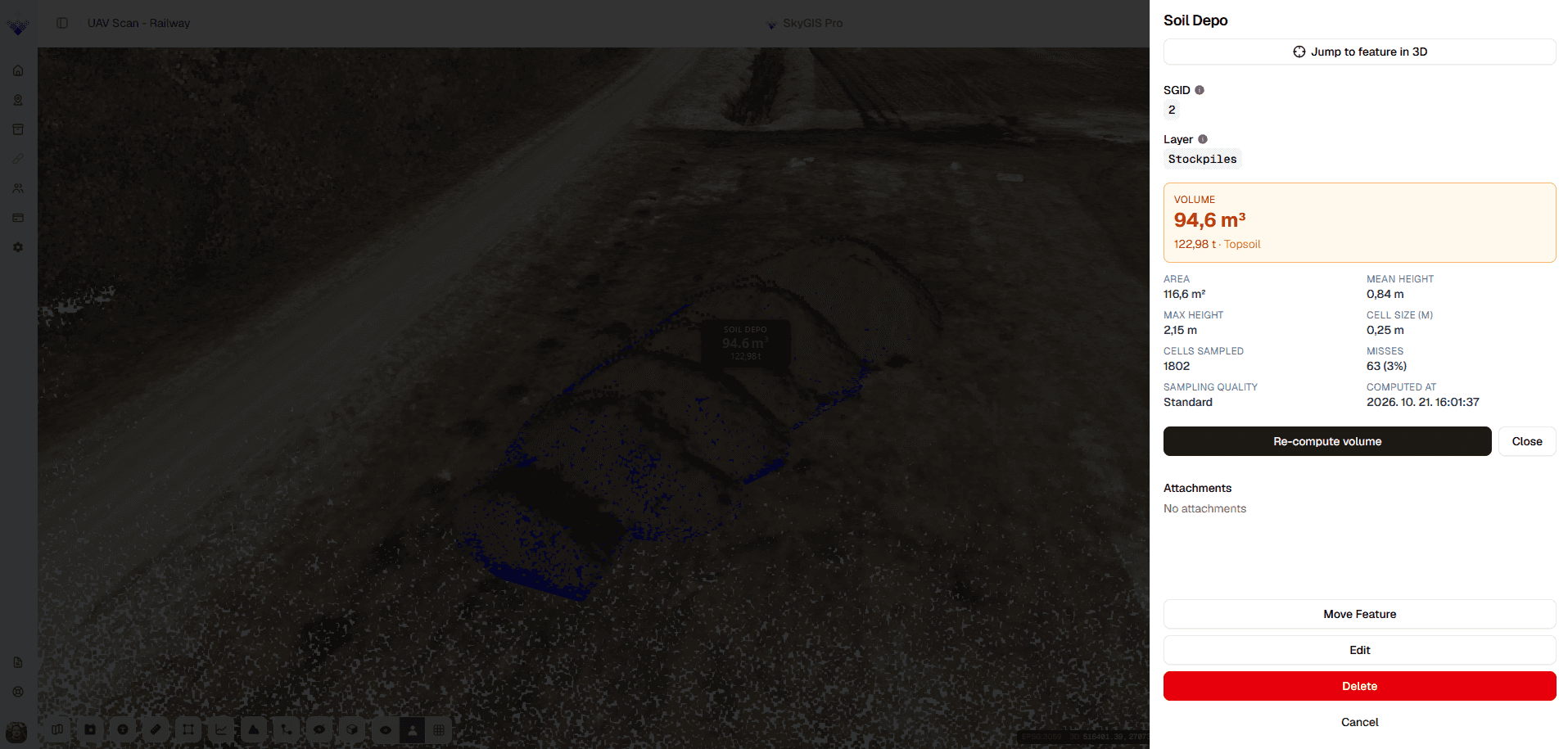
- Inputs
- Point cloud, perimeter, cell size
- Results
- Volume, coverage, estimated mass
- Coordinates
- Projected, in metres
How to calculate a stockpile volume
Draw the perimeter
Click around the toe of the pile on the point cloud and close the shape. Take care where the pile meets a wall or the next pile: the line you draw is the footprint the volume is calculated over.
Set the cell size and sampling
The cell size is the grid the pile is sampled on, and smaller cells follow its shape more closely. Then choose the sampling quality.
Add a density if you need mass
Pick a material from the list or type in your own density. Leave it out and you get volume only.
Compute and check the evidence
Before you use the number, look at the fitted base plane, the sampled coverage and the height columns. Thin coverage on the far side of a pile shows up here.
Save or recompute
Save the result with the project. You can reopen it later, change the settings and run it again.
What the fitted base plane means
The volume is calculated above a base plane that SkyGIS fits under the pile. It is an assumption, not a survey of the ground underneath. A plane can't follow a hollow or a change of slope beneath the pile, so on uneven ground treat the figure as an estimate.
Mass is the volume multiplied by the density you choose. Moisture, compaction and variation in the material all shift the real tonnage, so keep a note of the density with the result. The tool needs a projected coordinate system in metres.
Example
A monthly stock count at a yard
A surveyor flies an aggregate yard at the end of each month and uploads the point cloud into a folder named for the capture date, in the same project as the previous months.
Each pile gets a perimeter, the same cell size as last month and the density the yard manager agreed for that material. The saved results sit with each survey, so when a figure looks wrong next month, anyone on the project can open the old calculation and see the footprint and settings behind it.
- Input
- Monthly UAV point cloud
- Kept with each pile
- Perimeter, cell size, density
Stockpile volumes in Viewer and Pro
Viewer
- Draw a new perimeter on the point cloud
- Cell size, sampling quality and density settings
- Volume above a fitted base plane
- Estimated mass from a density
- Saved results you can reopen and recompute
Pro adds
- Start from an existing polygon or surface
- Volumes against a horizontal plane or another surface
- Cut and fill between two surveys of the same site
Questions
Which plan includes stockpile volumes?
SkyGIS Viewer. Pro adds volumes from an existing polygon or surface, volumes against a horizontal plane, and cut and fill between two surveys of the same site.
Can SkyGIS convert stockpile volume to tonnes?
Yes. Choose a material or enter a density and the result includes an estimated mass. The estimate is only as good as the density, so use the one agreed with the yard or the client.
Can someone check a stockpile figure later?
Yes. Results are saved with the survey, so when a figure is questioned anyone on the project can reopen the calculation and see the footprint and settings behind it.
How do I report stock changes between surveys?
Keep each survey in the same project, in folders by capture date, and measure each pile on each survey. For the material moved between two surveys in one figure, use Pro surface comparison.
Try it with your own data
The free plan includes one user and 5 GB of storage, with no credit card required. Upload a file and open it in your browser.