Check earthwork cut and fill against design
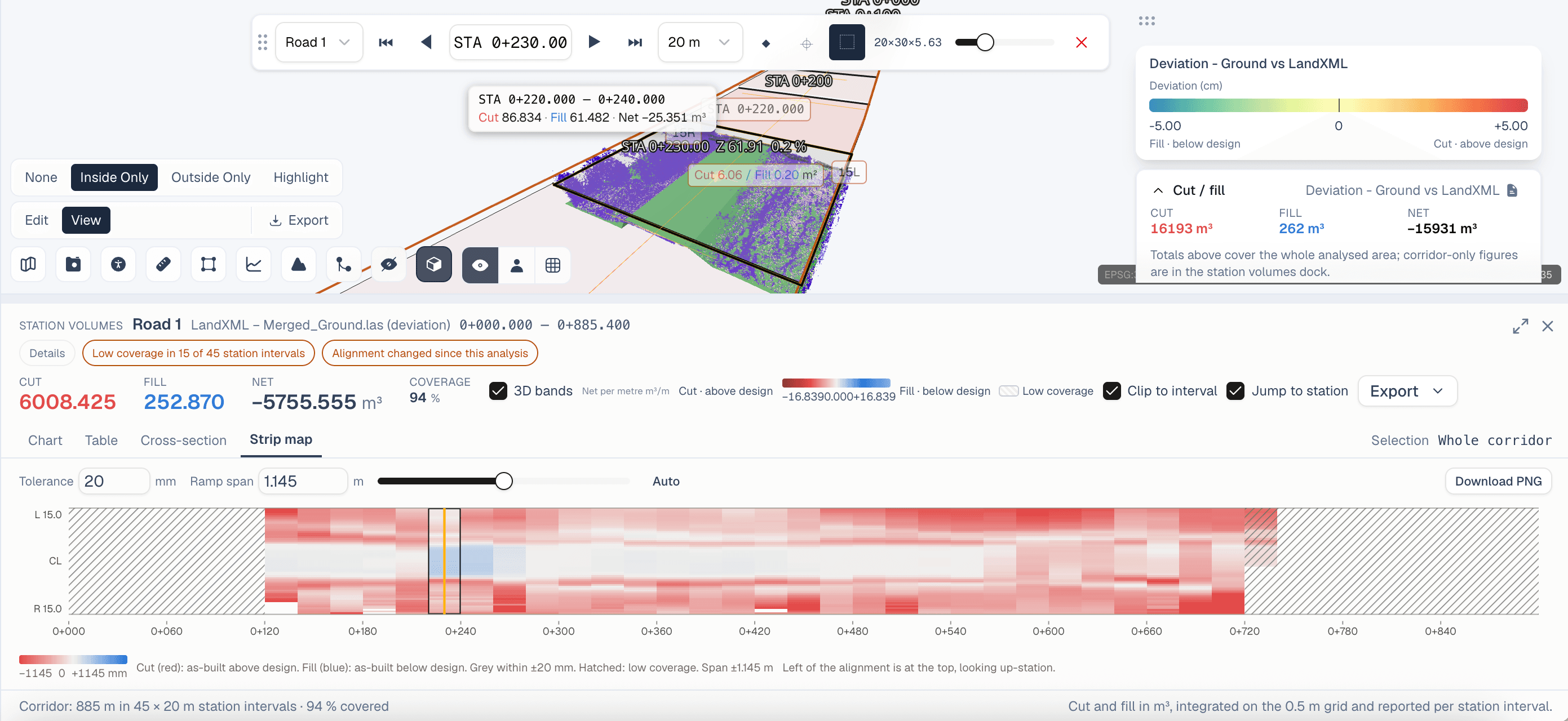
Compare the latest survey with the design surface to get cut, fill and net volume for the site, then split it into stations along the alignment. Each figure links back to a 3D difference, a cross-section and a chainage, so you can check where a quantity comes from before it goes into a progress report.
- Compares
- Point clouds, LandXML, IFC via LandXML
- Breakdown
- Per station, at the interval you set
- Outputs
- CSV, PDF report, DXF sections and surfaces
Which surfaces to compare
Surface difference takes two inputs and returns cut and fill for any of these pairs. Pick the pair that matches the question you're answering.
Point cloud against LandXML
The usual progress check: this week's survey against the design TIN. Classify the ground first if parked plant or vegetation are in the scan.
LandXML against LandXML
Two surfaces, such as a survey TIN and the design, or two design revisions. This pair also produces a 3D difference model.
Point cloud against point cloud
Two surveys of the same ground, to measure what moved between visits. Both need to share a coordinate system before upload.
IFC design
When the design only exists as an IFC model, extract its top surfaces to LandXML first. The same file can go to machine control.
How cut and fill is calculated
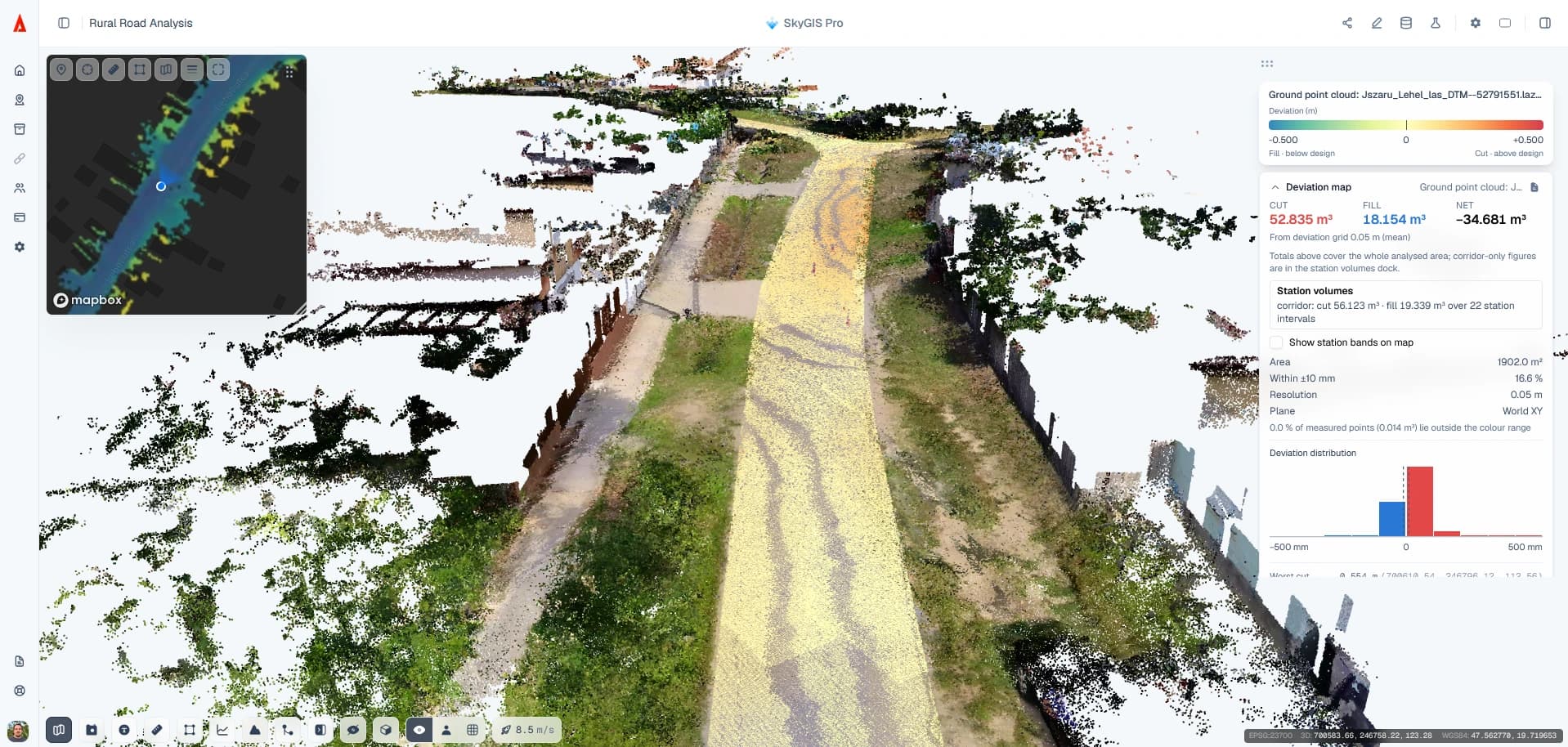
Both inputs are sampled as height surfaces on a common XY grid, and SkyGIS subtracts the bottom surface from the top one. Positive differences are fill and negative differences are cut. With the design on top and the survey underneath, fill is where the ground is still below design and cut is where it sits above.
The calculation runs over the whole footprint or inside a boundary you import from a file or draw over the data, which is how you isolate one work zone. Grid resolution changes the sampled result, especially along edges and around small features, so use the same cell size for runs you want to compare.
Earthwork quantities by station along the alignment
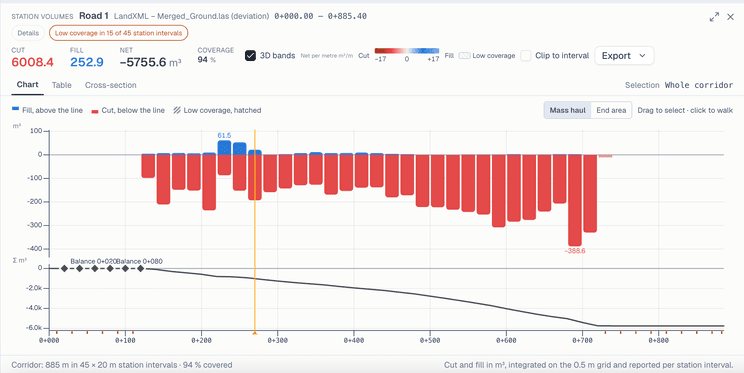
Set the active alignment with its label and start chainage. It can come from the LandXML file, an imported CAD or GIS line, or a centreline digitised over the point cloud. Choose an interval and SkyGIS splits the corridor into stations, each with its own cut, fill and cross-section.
The column chart shows cut and fill by chainage with a cumulative line, marks the peaks and hatches intervals where the survey doesn't reach the design extent. Click a station and the 3D view moves there and clips to it. The table sorts by any column, and the full station list exports to CSV.
The cumulative net curve shows how the balance develops along the route. It doesn't plan haul routes, fleets or costs.
A progress check from upload to report
Load the design and the survey
Create the project, set the coordinate reference system and upload the LandXML design with the new point cloud.
Keep only the ground
Ground classification (SMRF or cloth simulation) produces a ground-only cloud, so the comparison measures the earthworks and not the machines parked on them.
Run the surface difference
Pick the top and bottom inputs, the grid resolution and an optional boundary. Station analysis takes the alignment, chainage range, interval and left and right corridor widths.
Check the sections
Alignment Walk goes to any chainage, queries point elevations and clips the cloud and the design there. In the profile viewer, cut and fill are colour-coded on each section.
Report and file
Export the station table to CSV, generate the PDF report and take cross-sections into CAD as DXF. Each survey and its results go into a date-stamped folder.
Earthwork outputs
Everything comes from the same saved analysis, so the CSV, the PDF and the 3D view agree.
- Totals
- Cut, fill and net volume for the analysed area, with coverage
- Station table
- Cut, fill, net, cumulative volume and coverage per interval, exported as CSV
- PDF report
- Metrics and charts, with optional pages for individual stations
- DXF
- Cross-section profiles and 3D surface models for CAD
- Project record
- Each survey and its results in a date-stamped folder
Questions
How does SkyGIS support earthwork progress reporting?
Compare the latest survey with the design for cut, fill and net volume, then break it down by station along the alignment. The totals, station table, PDF report and sections come from one saved analysis, so the figures in the report agree with each other.
Can the commercial team see where a quantity comes from?
Yes. Each figure links back to a 3D difference, a cross-section and a chainage, so anyone questioning a number can see the ground behind it. The station table also exports to CSV for spreadsheets.
What if the design only exists as an IFC model?
Extract its top surfaces to LandXML in SkyGIS Pro and compare from there. The same LandXML file can go to the machine-control system.
Are areas without survey data counted in the totals?
No. Where only one surface has data, that area is unmeasured rather than zero. Coverage is reported with every total and stations the survey doesn't reach are flagged, so check both before a figure goes into a progress report.
Run it on your own design and survey
Bring a LandXML design and a recent survey to a 30-minute walkthrough. We'll compare them and go through the station results with you.